Establishing a DNS Tunnel to Bypass WiFi User Password Authentication for Internet Access
- The optimization of DNS A records was successfully tested on March 5, 2024, specifically targeting the enhancement of t1ns’ A records.
Utility
Establishing a DNS tunnel serves the purpose of circumventing WiFi connection authentication, allowing users to access the internet. This endeavor also involves comprehending the operational principles of iodine.
Test Environment:
- OpenWrt on J4125: Employed as the server.
- Mac OS X Computer: Employed as the client.
Implementation
Refer to the following procedure for detailed implementation steps, including the overarching framework.
Once the client iodine connects to the server iodined, it proceeds to encapsulate SSH for internet access (or utilizes alternative methods such as VPN/SOCKS proxy).
Current Objective: Overcoming the need for re-entering credentials (typically, a username and password) post WiFi connection establishment (often accompanied by internet usage time restrictions, like utilizing phone numbers as usernames and sending passwords via SMS).
Current Application: Establishing a DNS tunnel to bypass WiFi connection authentication prompts, then remotely managing or issuing commands to Linux hosts via SSH.
Next Steps:
- How to enhance speed? Minimizing wait times during connection usage (presently demanding considerable patience).
- Are there other application scenarios? Or possibilities for integration with other applications?
Sources of Related Knowledge/Inspiration
What is DNS Tunneling?
DNS tunneling involves encapsulating the content of other protocols within the DNS protocol, enabling data transmission and communication through DNS requests and responses.
Principles of DNS Tunneling:
During DNS queries, if the queried domain name is not cached locally on the DNS server, an internet query is made, and the results are returned. With a customized server on the internet, data packet exchange can be facilitated using the DNS protocol. From the perspective of the DNS protocol, these operations appear as multiple queries for specific domain names with resolved results. However, the fundamental issue lies in the anticipation of an IP address as the return result, which may actually be any arbitrary string, including encrypted C&C commands.
Types of DNS Tunnels:
Direct Mode: The client directly initiates DNS resolution requests to a specified IP address DNS server.
Relay Mode: DNS resolutions traverse the internet through iterative resolution, eventually pointing to a designated DNS server.
The distinction lies in direct mode offering relatively faster speeds but weaker security, while non-direct mode provides slower speeds but better security. In most cases, the relay mode is preferred.
iodine
iodine establishes an IPv4 data channel through a DNS server, ideal for networks where the target host can only send DNS requests. Developed in C language, iodine consists of the server program iodined and the client program iodine. Kali Linux includes iodine by default. Download link: https://github.com/Al1ex/iodine
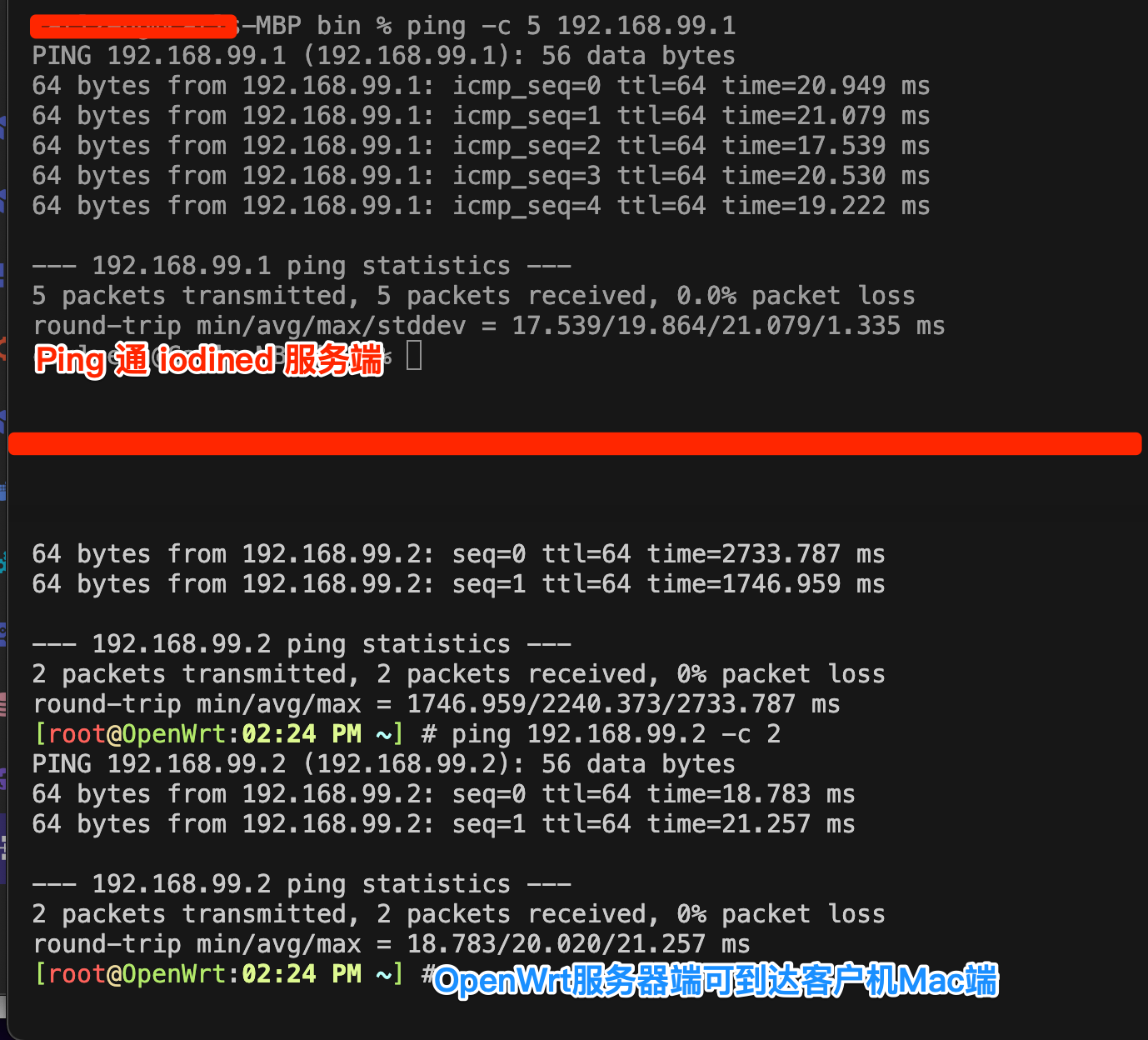
iodine operates by creating a LAN using a TAP virtual network adapter on the server side while establishing a virtual network adapter using TAP on the client side. The two communicate through a DNS tunnel, residing within the same LAN (communicable using the ping command). Upon establishing the connection between the client and server, a virtual network adapter labeled “dns0” is added on the client. For further instructions and feature details, please refer to the official documentation of iodine: http://code.kryo.se/iodine
Links:
Another Tool: dns2tcp
For more information, refer to the article: WiFi Wireless Internet SMS Authentication)
Related
Implementation Method
1. Obtaining iodined (Server) and iodine (Client) after Compilation
OpenWrt Platform (Linux):
1 | opkg install iodined |
Mac Platform (Mac OS X):
1 | iodine-0.8.0 % make |
2. Setting DNS Records
Taking the configuration for dash.cloudflare.com as an example, add the following two DNS records:
| DNS Type | Name | Content/Value | Note |
|---|---|---|---|
| NS | t1 | t1ns.carlzeng.com | DNS Only |
| A | t1ns | 125.34.235.88 | DNS Only, Optimizable |
As of March 5, 2024, through practical testing, it was found that this A record could be optimized by removing the wildcard * A record resolution. The rationale is that the application only needs the IP address of t1ns.carlzeng.com, and by not setting this A record, the DNS system automatically uses the IP address corresponding to the wildcard *, which achieves the desired effect of reducing the number of DNS records that need to be updated by broadband DDNS.
3. Running the Server-Side iodined

This example does not work on OpenWrt: iodined -f -P 123 10.0.0.1 t1.carlzeng.com
1 | Use -c and -l 125.34.235.88 to specify the WAN interface's listening IP, -D for debug information output |
For long-term operation, run in the background:
1 | iodined -c -l 125.34.235.88 -p 53 -P 123 192.168.99.1/24 t1.carlzeng.com |
4. Running the Client-Side iodine

For the Mac OS X client, run:
1 | ./iodine -f -P 123 t1.carlzeng.com |
Upon successful connection, expect the following information:
1 | ./iodine -f -P 123 t1.carlzeng.com |
1 | # sudo ./iodine -r -f -P 123 202.106.0.20 t1.carlzeng.com |
For long-term operation, run in the background:
1 | sudo ./iodine -r -P 123 202.106.0.20 t1.carlzeng.com |
5. Using DNS Tunneling for Internet Proxying
Note: This solution requires enabling the firewall settings on the iodined server (i.e., OpenWrt); enabling SSH access to run from the WAN interface, and enabling the firewall to accept inbound traffic.
Practical Proxy Usage:
SSH Tunneling Solution:
Client-Side Operation:
ssh -CfNg -D 7001 root@192.168.99.1
1 | ssh -CfNg -D 7001 root@192.168.99.1 |
Configure the client’s browser to use the SOCKS proxy:
IP Address
Port 7001
Reflection
Through the above setup, web pages can be accessed normally. However, the internet speed is less than satisfactory and does not serve significant daily use purposes.
Unless in extremely special cases, such as triggering specific pre-compiled instructions on the remote server via this tunnel connection.
Errors and Solutions
#1.Client-side Freezing:
1 | ./iodine -f -P 123 t1.carlzeng.com |
#1 Solution:
Switch to a different client for testing (e.g., switch from Mac to OpenWrt or Debian)
Use the online official tool for testing: https://code.kryo.se/iodine/check-it/
1 | Troubleshoot your iodine setup |
1 | iodined -f -DDD -l 125.34.235.88 -p 53 -P 123 10.0.0.1 t1.carlzeng.com |
1 | Final improved server-side command |
7.1. Problems with Connection Speed
7.1 Solution:
Check the server’s internet connection speed and usage to confirm the performance issues.
7.2. SSH Connection Error
7.2 Solution:
Verify the SSH credentials and network configurations to ensure a successful connection.
7.3. Asynchronous Behavior
7.3 Solution:
Review the network settings and configurations to ensure synchronized communication between the client and server.
Troubleshoot your iodine setup and DNS setup Online
https://code.kryo.se/iodine/check-it/
Troubleshoot your iodine setup
Analyzing DNS setup for tunnel domain ‘t1.carlzeng.com’… (might take some time)
Looking for nameserver for carlzeng.com.. got amir.ns.cloudflare.com (at 108.162.193.62).
Resolving delegation of t1.carlzeng.com at 108.162.193.62… to t1ns.carlzeng.com (at 125.34.235.**).
Expecting iodined to be accessible at 125.34.235.**… yes, using proto 00000502.
Testing iodine reply using default nameserver… ok.
Well done, your iodine setup seems fine!