Setting up Remote LAN Play for Nintendo Switch Using switch-lan-play (Multi-Switch Remote LAN Party Setup)
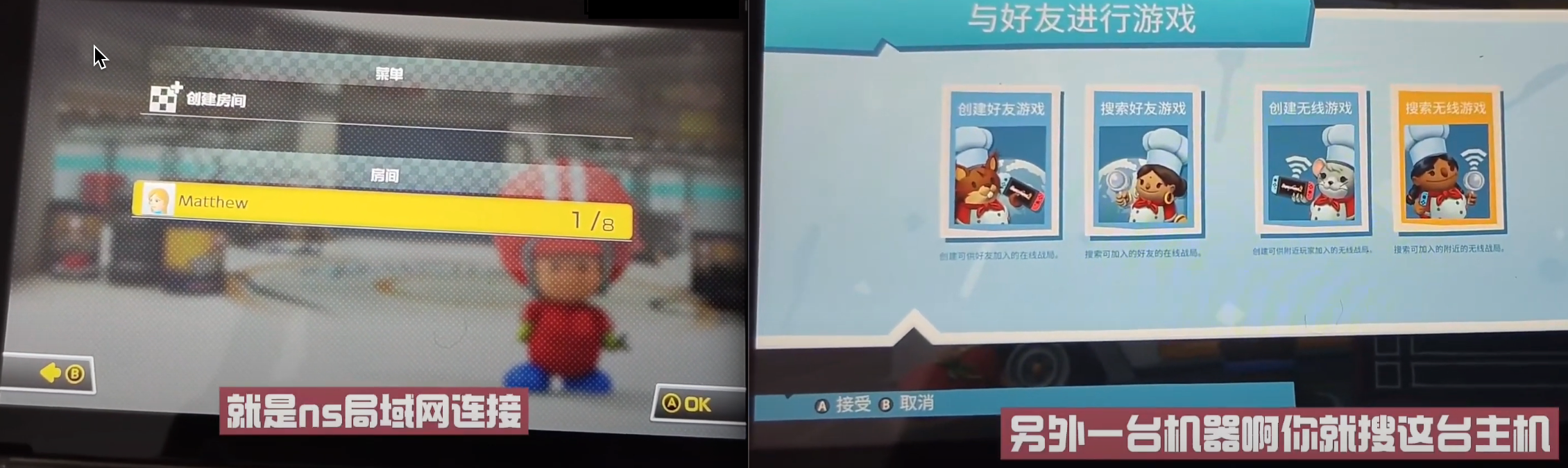
Understanding Local Wireless and LAN Play
LAN and Local wireless are different things.
- LAN refers to Local Area Network play.
(Requires connection to a router or mobile hotspot’s WI-FI, displayed as LAN Play in MK8) - Local wireless refers to local wireless play.
(One device creates a hotspot, others connect to it; does not require connection to a router’s WIFI; displayed as Wireless Play in MK8)
It involves connecting two or more SWITCH consoles in close proximity over a LAN, or connecting them to the same local network (usually under the same router).
Tutorial: Local Play on Switch - Mario Kart 8 Kitchen Nonsense - Geek Adi - NS LAN Play
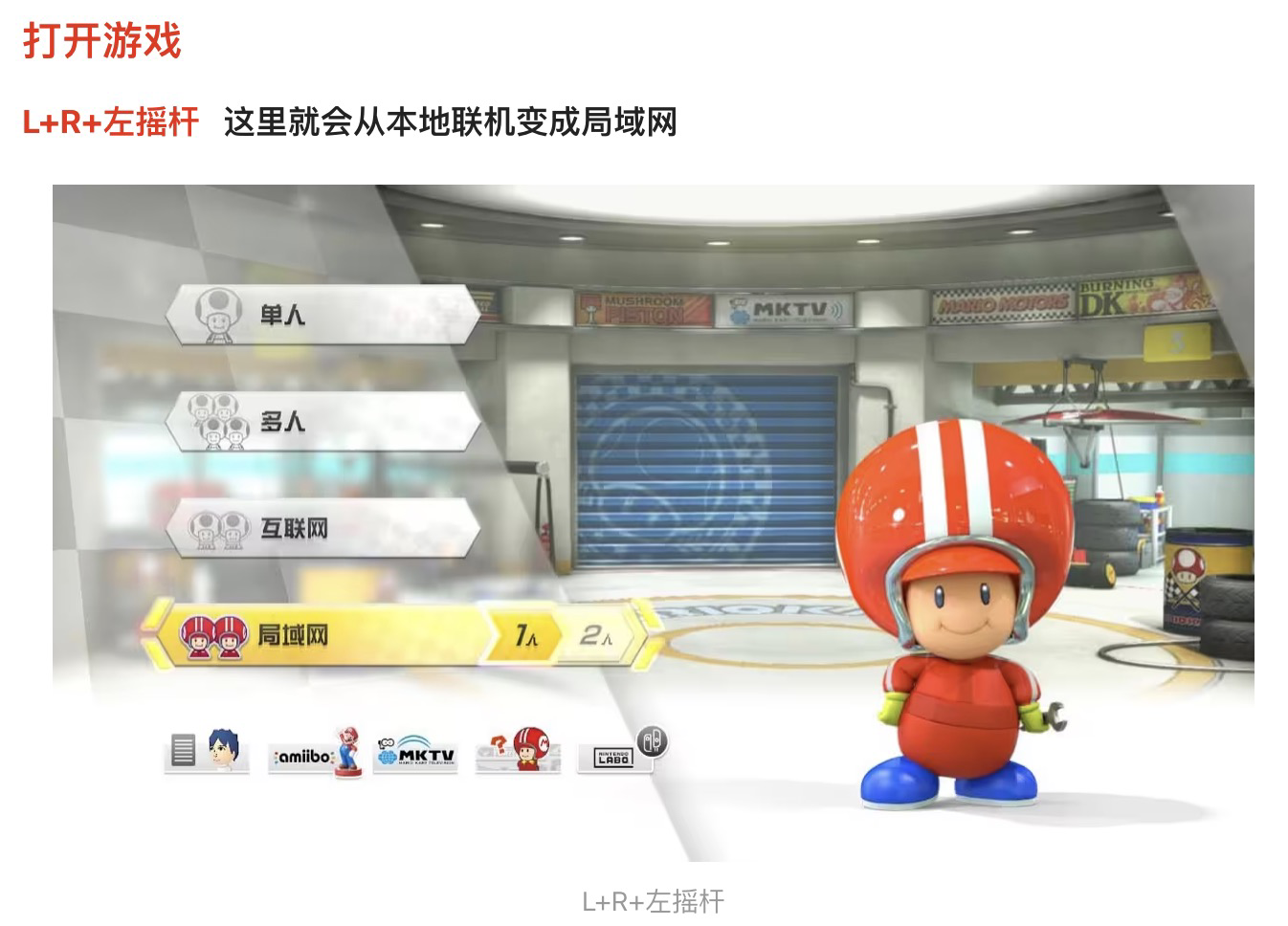
How to switch between these modes in MK8?
Nintendo Switch: How to Access LAN PLAY on Mario Kart 8 Deluxe
Press L + R + down on the left joystick simultaneously to switch between these two play modes.
Understanding switch-lan-play
Enjoy games with your friends as if you were on a LAN.
1 | Internet |
Usage
To play with your friends, both you and your friends need to run the lan-play client connecting to the same Server on your PCs, and set static IP on your Switch.
Your PC and Switch must be connected to the same router.
Visit https://www.lan-play.com/ for instructions on how to set this up. See below for build instructions.
For specific steps: http://www.lan-play.com/install
What’s the Use
Remote, remote, remote; internet-based remote play; global internet-based remote play.
Solves online connectivity issues for hacked systems (also supports banned consoles), expands possibilities for more interactive gaming, and allows remote gaming with friends (directly through private servers).
Please use the test server: switch.carlzeng.com:11451
How to Use
1. Switch LAN-Play Server (Remote Server)
Option 1: Use an existing service like lan-play.com
Choose and copy a server address + port from LAN Play Status (format, e.g., joinsg.net:11453)
Option 2: Set up your own server (Instructions provided by the author)
1 | switch.carlzeng.com:11451 |
2. Switch LAN-Play Client (Local Network)
(Can be installed on Docker, Windows/Mac, or rooted smartphones):
Docker Client Installation
1 | docker run -d --name='LanPlayClient' --net='bridge' -v '/volume2/KingchuxingSSD512G/docker/compose/SwitchLanPlayClient':'/config':'rw' 'chrispy212/lan-play-docker' |
Mac Client Installation
1 | Install client on MAC |
Client Tools Introduction switch-lan-play
Download the official tool:
- lan-play-linux (996 KB, Jun 21, 2020)
- lan-play-macos (927 KB, Jun 21, 2020)
- lan-play-win64.exe (437 KB, Jun 21, 2020)
PC Installation
If you encounter errors when running on Windows 8, such as “wpcap.dll not found, can’t continue executing code, reinstalling the program might solve this problem”:
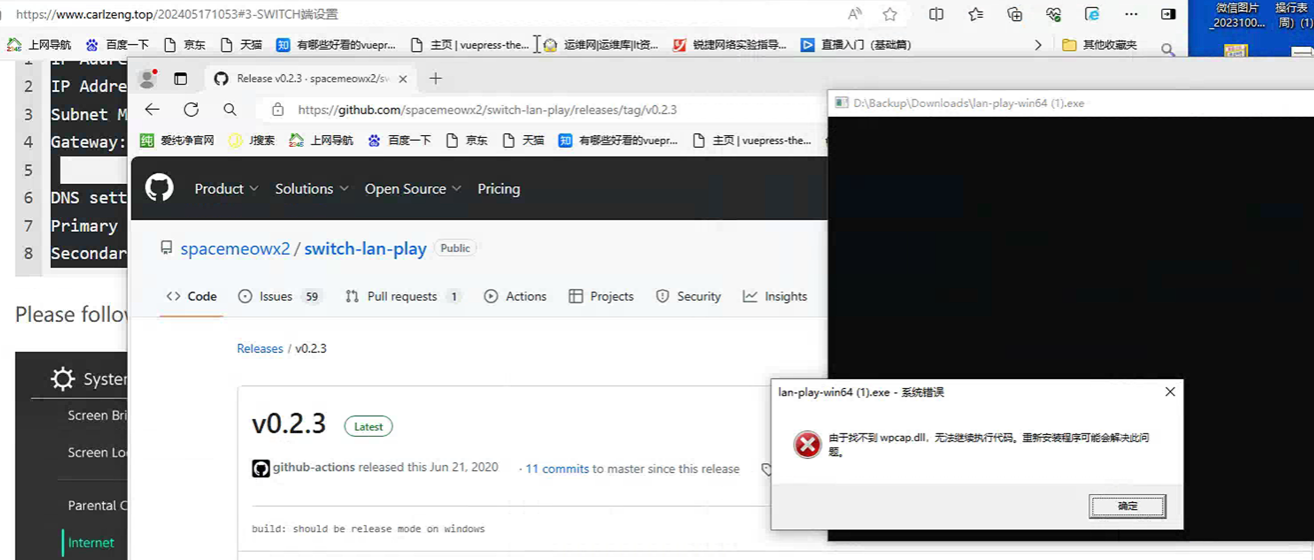
Solution:
Download and install Win10Pcap, Win10Pcap is provided as a Windows Installer module (.msi package).
Alternatively, download from here: https://www.winpcap.org/install/default.htm
3. Switch Settings
WIFI Network Settings on the SWITCH Console
Note: The IP address can be any from 10.13.0.1 to 10.13.255.254, excepting 10.13.37.1. But don’t use the same IP address with your friend.
1 | IP Address Settings |
Please follow the screenshots:
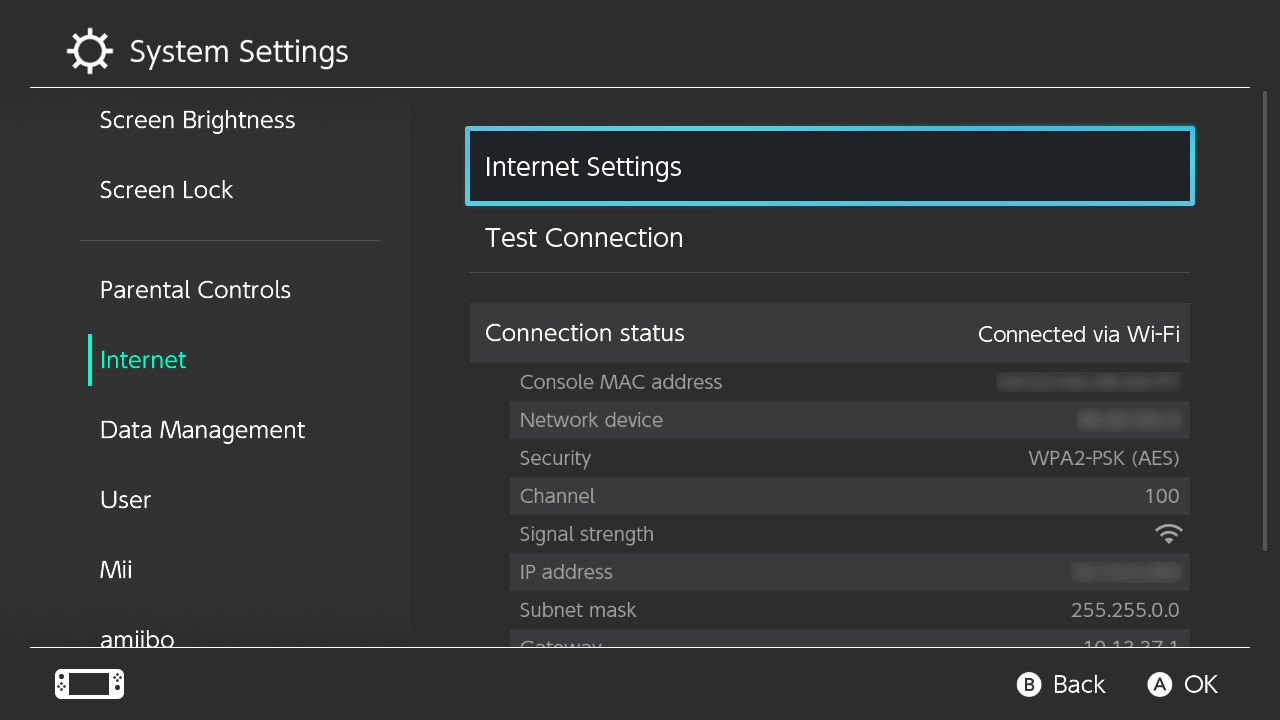
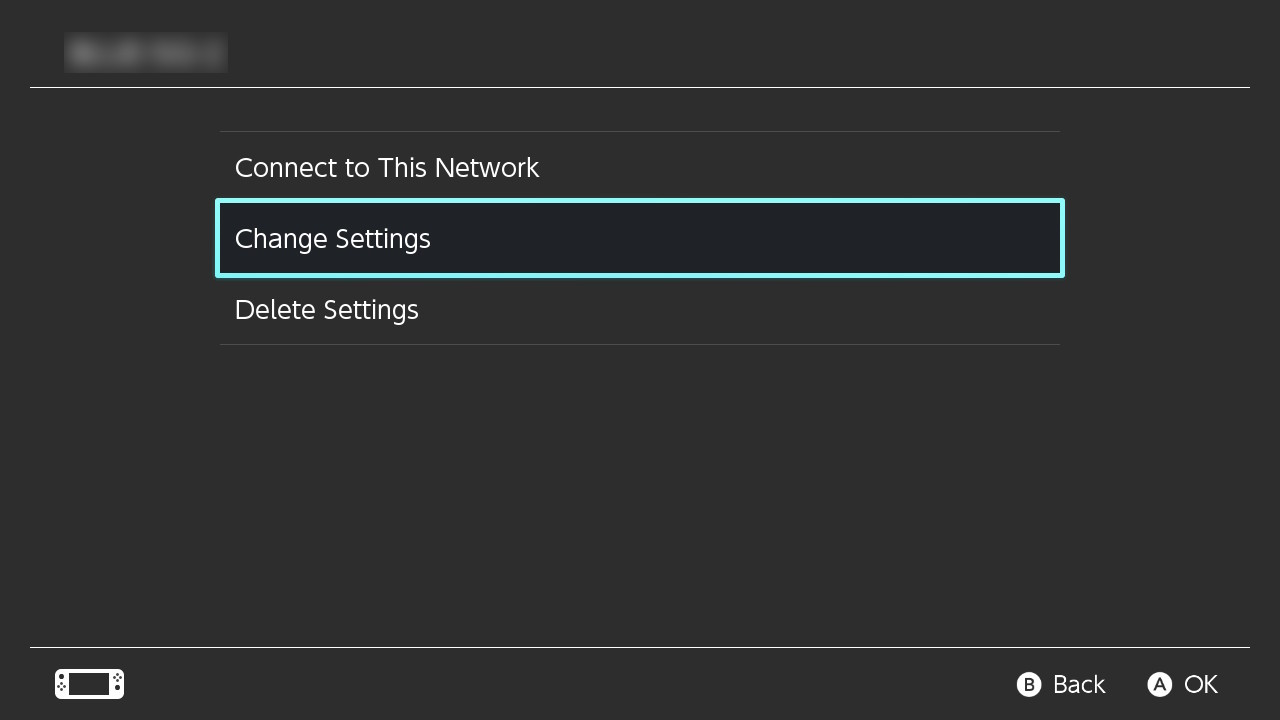
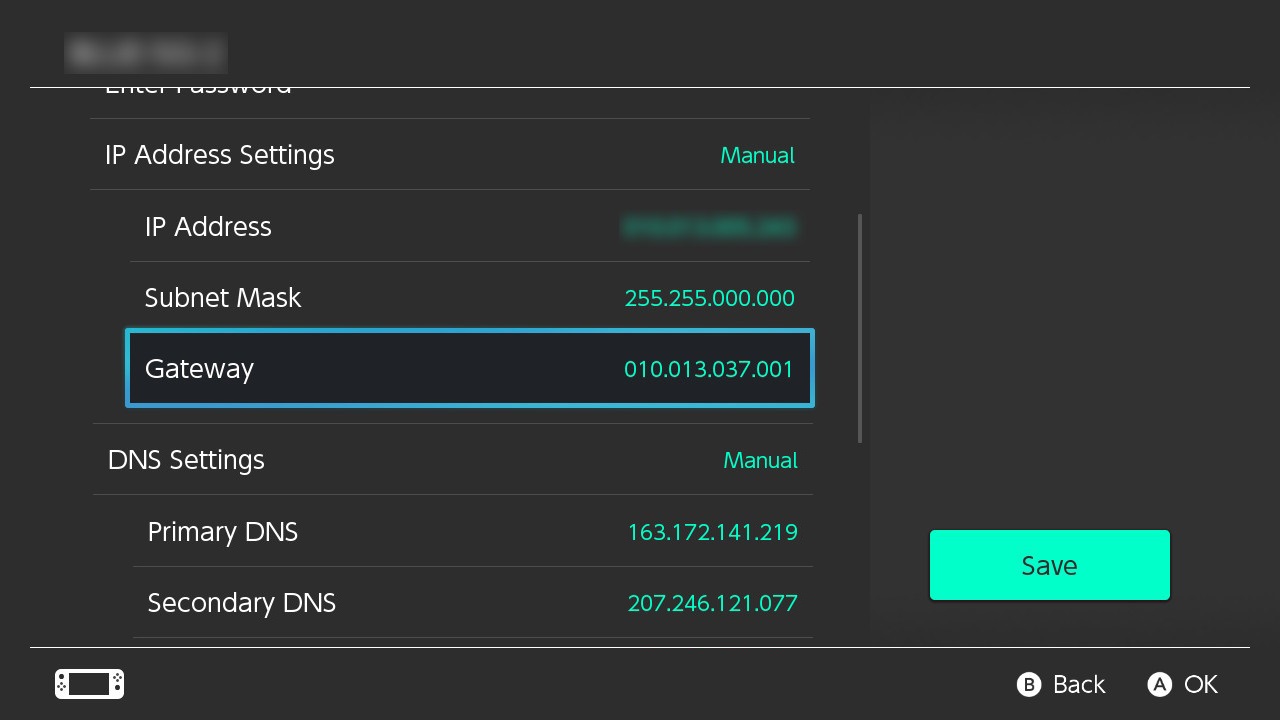
Refer to: http://lan-play.com/install-switch
Installing and Configuring Plugins in Atmosphere on SWITCH (Optional)
ldn_mitm - Download ldn_mitm to play non LAN supported games
You will need to download ldn_mitm if you wish to play games that don’t have the lan play feature (Local Wireless mode Games). 如果你要玩的游戏没有局域网联机功能,仅支持面对面无线联机功能,那么你可以用这个插件将面对面联机拓展到互联网上(实现互联网的联机使用到仅支持面对面无线联机的游戏中)
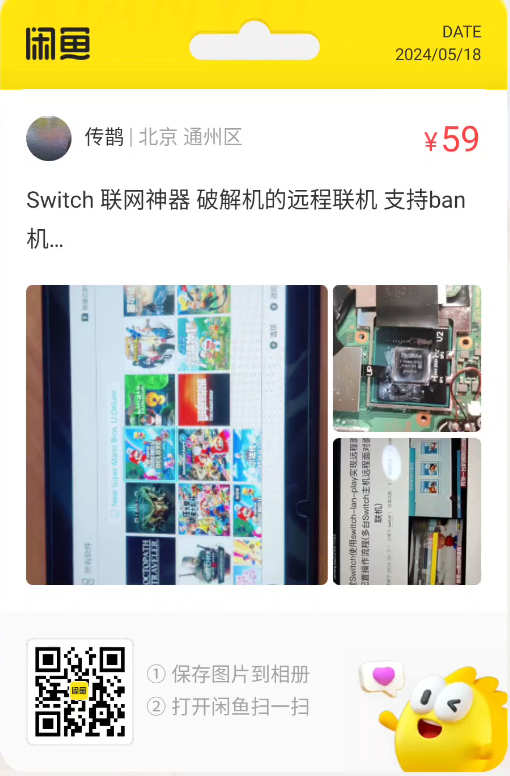
1-on-1 Remote Assistance Service
Related
The method/process of implementing/installing the client onto an Android smartphone.
如果不需要root就好了,lanplay_flutter_x86_64_1.3.0.apk 这个可以不需要root吗?
How to setup Switch LAN-Play on Android phone/tablet
REQUIRES ROOT and Android 7.0+
Option1: Actions in Android:
- Install a latest Termux from f-droid - “https://f-droid.org/en/packages/com.termux/“
- Launch Termux app, you’ll see a black terminal window.
- Next, enter these 3 commands one by one:
#(when prompted):choose what version you want to build (choose stable if latest doesn’t compile)
1 | curl -LO tinyurl.com/switchlan |
- It’ll setup additional packages and compile lanplay from source (1-5 minutes)
- Start WiFi tethering (or connect your phone to wifi)
Option2: Actions in Android(LanPlayAndroid):
下载地址:https://github.com/liuzhushaonian/LanPlayAndoird/releases
先确定你有Android系统的root权限,然后下载LanPlayAndroid
Actions in HOS (Switch):
- Connect to WiFi and configure network settings:
1 | IP-address Settings Manual |
- download ldn-mitm “https://github.com/spacemeowx2/ldn_mitm/releases/latest“
- extract it in root of your SDcard (don’t forget to clear the archive bit in Hekate if necessary)
- reboot switch
Connect to Servers:
- Launch Termux and enter
bash switchlan, script will ask you for server ip and root privileges - or enter
bash switchlan server's addressto skip asking part, example:bash switchlan edgymin.ga:11451 - If connection was successful you’ll see “Server IP: x.x.x.x” at the end
To Disconnect:
- Long tap anywhere in Termux -> more -> kill process; or press “exit” in Termux’s notification
How to delete/reinstall lanplay:
enter rm -rf ~/switch-lan-play; rm ~/switchlan in Termux
Switch-lan-play 服务端架设
新建一个目录存放docker-compose.yml (最新版rust写的)
1 | version: "3" |
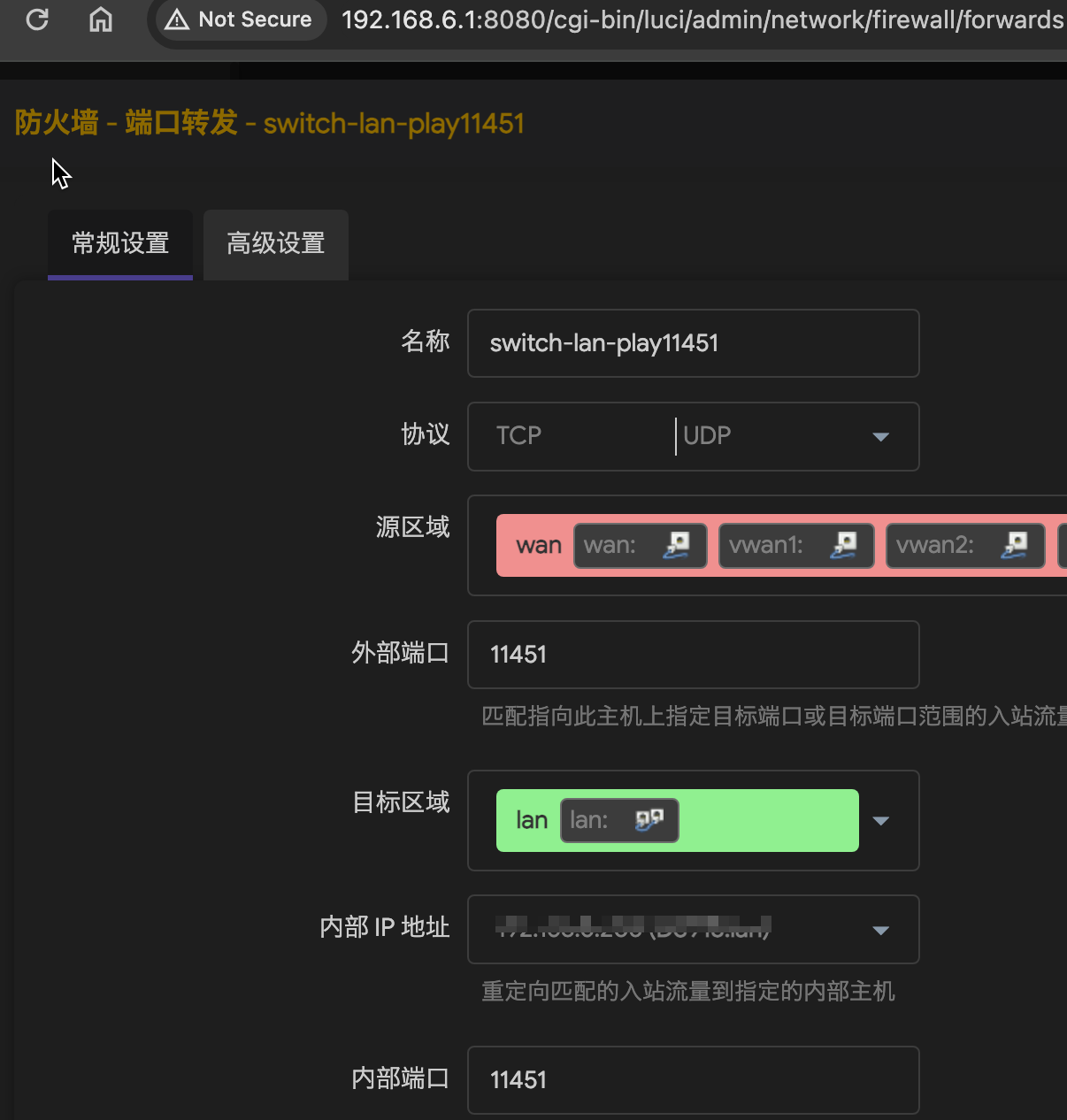
然后到路由器的防火墙中做端口转发/映射 11451
其他的服务器列表
https://raw.githubusercontent.com/JonsonChang/home/master/lanplay2.json
Lan-Play Status
运行APP: LanplayFlutter.app 这个客户端可以在各个平台上查看服务器上都有哪些人,在玩什么游戏(类似于页面,当然截图的这一时刻没有人在玩):
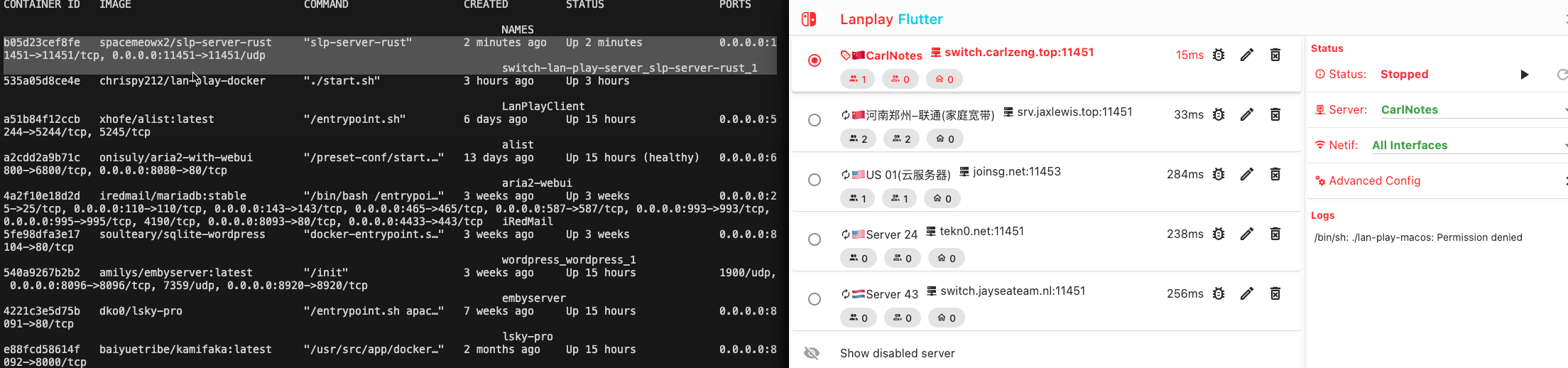
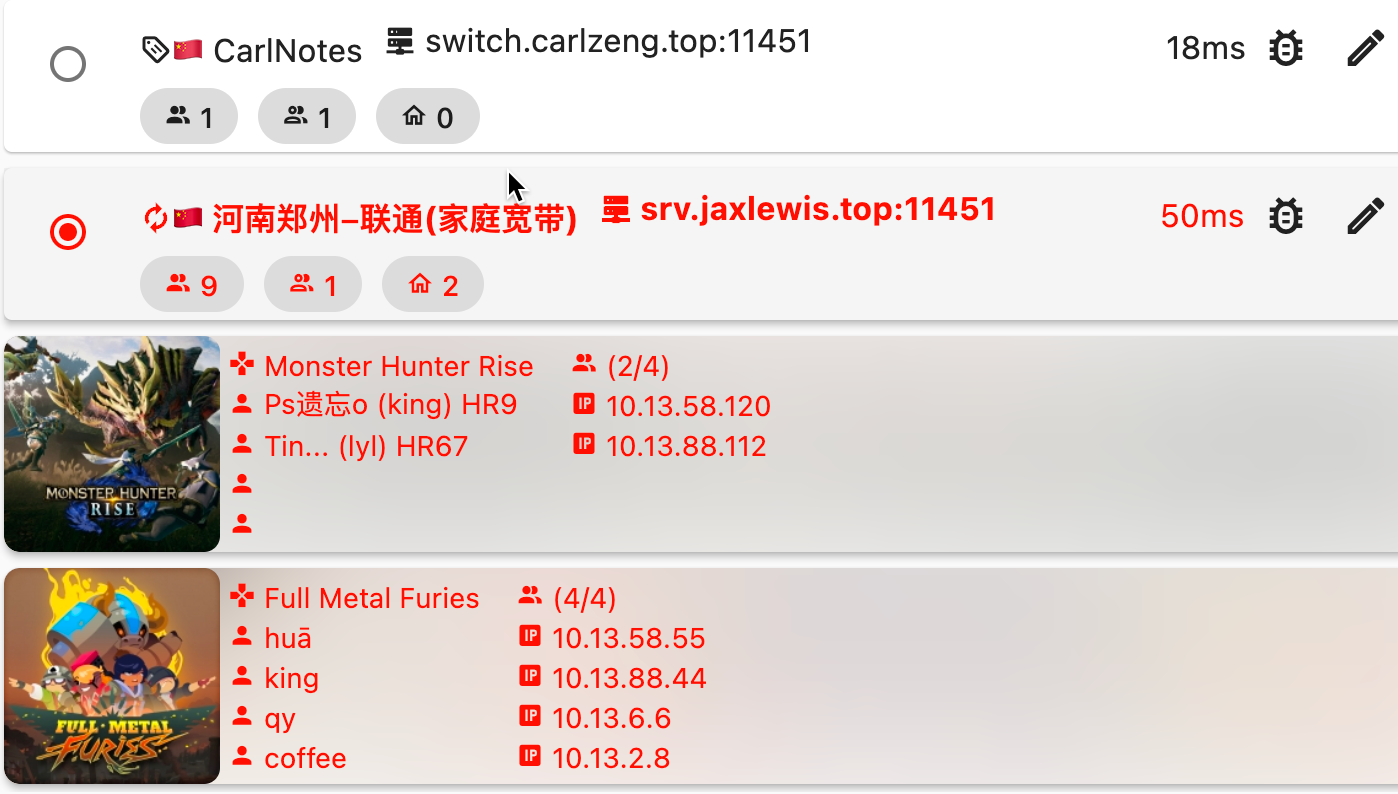
晚上看见了srv.jaxlewis.top:11451有人联机玩:
- Monster Hunter Rise 魔物獵人 崛起
- Full Metal Furies 全金属狂怒
Lan-Play 支持联机的游戏列表
| 游戏名称 | ——建议更新到最新版——下方记录不一定最新 | 路径 | 状态 | ns是否要开联机插件 | 插件版本 | |
|---|---|---|---|---|---|---|
| 1 | 马里奥赛车8 | v589824(1.7.1) | 左摇杆+L+R一起按,第四个选项本地联机就会变成局域网,进入局域网 | 正常工作 | 否 | |
| 2 | 口袋铁拳竞标赛DX | v1048576(5.4.0) | 本地联机,左摇杆+L+R一起按,变成局域网,进入局域网 | 正常工作 | 否 | |
| 3 | v458752(1.3.3) | 支持但没研究局域网路径 | 正常工作 | 否 | ||
| 4 | 泰坦之旅 | v262144(1.0.4.2) | 选择局域网 | 正常工作 | 否 | |
| 5 | 马里欧网球 ACE | v786432(3.1) | 自由对战,本地联机,左摇杆+L+R一起按,变成局域网,进入局域网 | 正常工作(网速要求高) | 否 | |
| 6 | 喷射战士2(美版+日版) | 5.1 | 按X,第四个选项the shoal(海滩) ,按下左摇杆+L+R,5秒,右下角书本消失,画面变化,进局域网。 | 正常工作(服务器要求高) | 否 | |
| 7 | 文明6 | v131072(1.0.2) | 选择多人模式,进局域网 | 玩久了会掉线 | 否 | |
| 8 | 马造2 | v131072(1.1) | 需要进入全球模式连官方创建角色才能进入局域网(或者导入正版有角色的存档才可以联机) | 比较卡 | 否 | |
| 9 | 红帽子与索尼克2020东京奥运会 | v65536(1.0.1) | 主界面,左摇杆+L+R一起按,第四个选项本地联机就会变成局域网,进入局域网 | 正常工作 | 否 | |
| 10 | 精灵剑盾 | 1.1.1m | 1、破解机关闭ns的联机插件。(不关插件会卡屏)2、拿到图鉴后,按X进入设置,在设置界面同时按下L+R+左摇杆,进入局域网模式,再连接wifi(最好用游侠,wifi标志不能有L),然后开房即可。打完一次后,再进入设置开局域网刷新信息比较快。 | 正常工作 | 否 | |
| 11 | 猎天使魔女2 | 联机界面,左摇杆+L+R一起按,变成局域网,进入局域网 | 正常工作 | 否 | ||
| 12 | 圣徒3 | 选择局域网 | 未测试 | 否 | ||
| X | RetroArch模拟器(破解机) | 1.7.7+ | 支持但没研究局域网路径 | 未测试 | 否 | |
| 13 | 路易吉洋馆 | 1.1.1 |
只有本地联机模式的游戏:必须是破解的机子,并且用lan-play电脑软件+NS插件(ldn_mitm)才可以远程联机:
| 1 | 暗黑破坏神3:永恒典藏版(美版) | 2.6.7a.64008 | 选择“网路设定”,下面的“本地联机”,“摇杆向右移动选择右上角名称加入房间” | 正常工作 | 是 | 1.2.4+ |
|---|---|---|---|---|---|---|
| 2 | 怪物猎人XX(日版) | 1.3以上 | 按ZL,选择第一创建或第二个加入(身边的朋友) | 正常工作,房主先退出游戏,全部人都会死机 | 是 | 0.1.3+ |
| 怪物猎人XX(日版) | 1.3以上 | 按ZL,选择第一创建或第二个加入(身边的朋友) | 游侠联机会死机,房主退出后游戏会死机 | 是 | 0.1.3+ | |
| 3 | FIFA 19(美版) | v327680(1.0.5) | 选择Online,Local seasons,加入房间 | 正常工作(服务器或网络不好会有延迟) | 是 | 0.0.6+ |
| 4 | 任天堂明星大乱斗 | 7.0 | 按ZR,本地联机,搜索房间加入 | 正常工作(服务器或网络不好会有延迟) | 是 | 0.1.3+ |
| 5 | 煮糊了2(分手厨房2) | 1.0.13 | 按X,第四个搜索无线游戏 | 正常工作 | 是 | 0.0.6+ |
| 6 | 龙珠:超宇宙 2 | v524288(1.11.0) | 需要推进主线,对战3VS3 | 正常工作 | 是 | 0.0.6+ |
| 7 | 收获日2(美版) | v65536(1.1.0) | play,crime.net,crime.net local play,加入 | 正常工作,房主先退出游戏,全部人都会死机 | 是 | 0.0.6+ |
| 8 | UNO 牌 Switch版 | v196608(1.0.3) | multiple consoles,1v1或2v2,创建或加入房间 | 正常工作 | 是 | 0.0.6+ |
| 9 | 超级炸弹人R | v720896(2.2) | 战斗,局部战斗,搜索加入 | 正常工作(服务器或网络不好会有延迟) | 是 | 0.0.6+ |
| 10y | 九张羊皮纸(美版) | v262144(1.1.1) | 多人,本地无线,选择游戏 | 正常工作 | 是 | 0.1.3+ |
| 11 | 太鼓达人(港版) | v1245184 (1.1.6+) | 邻近主机通讯演奏 | 正常工作(服务器或网络不好会有延迟) | 是 | 0.2.2+ |
| 太鼓达人(美版) | v327608(1.0.4+) | 邻近主机通讯演奏 | 正常工作(服务器或网络不好会有延迟) | 0.2.2+ | ||
| 12 | 超级马里欧派对 | v65536(1.0.1) | 选择游玩人数时,选择两台switch | (延迟必须要<10ms才可以连上) | 是 | 0.2.2+ |
| 13 | 莫菲法则 | v196608(1.0.3) | 本地对战 | 正常工作 | 是 | 0.2.2+ |
| 14 | 生化危机:启示录2 | v0(1.0.0) | 突击模式,临近主机通讯,进入房间后,在右边的蓝色门点击搜索房间 | 正常工作,房主先退出游戏,全部人都会死机(1个房间最多2个人) | 是 | 1.1.2+ |
| 15 | 龙之死印:忍者与女巫 | v458752(1.1.1+) | 先通过第一关,然后才可以联机 | 人多会卡 | 是 | 1.1.2+ |
| 16 | 龙珠斗士Z | v196608(1.14) | 正常工作 | 是 | 1.1.2+ | |
| 17 | 三位一体 2:完整故事(美版) | v0(1.0.0) | 多人,本地无线 | 正常工作 | 是 | 1.1.2+ |
| 18 | 国夫君世界 经典收藏(日版) | v65536(1.0.1) | 正常工作 | 是 | 1.1.2+ | |
| 19 | NBA 2K19 20周年纪念版(日版) | v393216(1.06) | 正常工作 | 是 | 1.1.2+ | |
| 20 | 少女与战车 | 先通过第一关剧情,提示开通了通讯对战才可以联机,通讯对战,本地对战,创建或加入 | 可以联机,打完会死机 | 是 | 1.1.2+ | |
| 21 | 噬神者3 | 1.4+ | 先打开联机软件,ns连上wifi,点击游戏内最左边的终端机——临近游戏联机——搜索房间(PS:别人没邀请你进房的,别点击进去,会导致在玩的人需要重连网络再开房) | 正常工作,但如果已经联机了,有人突然进房,会全部人掉线 | 是 | 1.2.3+ |
| 22 | 火箭联盟 | v0(1.0.0) | 正常工作 | 是 | 1.2.3+ | |
| 23 | 进击的巨人2 | 未测试 | ||||
| 24 | 狙击精英 | v0(1.0.0) | 正常工作 | 是 | 1.2.3+ | |
| 25 | 一败涂地 | 1.4+1.4.1 | 播放-网络-无线,开房等人 | 正常工作 | 是 | 1.2.3+ |
| 26 | 威漫3PK | v0(1.0.0) | 未测试 | 是 | 1.2.3+ | |
| 27 | 2020东京奥运会 | v196608(1.0.3) | 左边开始游戏,选择本地联机模式 | 左边项目正常工作(100米、跨栏、链球、跳远、自由泳、混合泳、小轮车) | 是 | 1.2.3+ |
| 2020东京奥运会 | v196608(1.0.3) | 左边开始游戏,选择本地联机模式 | 右边项目要求网速(棒球、篮球、足球、排球、乒乓球、网球、拳击) | 是 | 1.2.3+ | |
| 28 | 全金属狂怒 | v0(1.0.0) | 正常工作 | 是 | 1.2.3+ | |
| 29 | 噗哟噗哟VS俄罗斯方块 | v0(1.0.0) | 主选单,多人,本地 | 正常工作 | 是 | 1.2.3+ |
| 30 | 勇者斗恶龙:建造者2 | 1.6.1+ | 通关第一个岛的所有任务后,回到初始的岛,再完成第一轮任务,开启传送法阵(旅途之门)就可以开始联机,选择区域网络 | 网速要求高,可能同城才可以 | 是 | 1.2.3+ |
| 31 | 火炬之光2 | v0(1.0.0) | 本地联机模式 | 正常工作 | 是 | 1.2.4+ |
| 33 | 魂斗罗 | v65536(1.0.1) | 打完初始的剧情—升降梯/运输车—与好友一起玩—搜索本地无线 | 有延迟 | 是 | 1.2.4+ |
| 34 | FIFA20 | v65536(1.0.1) | 正常工作(服务器或网络不好会有延迟) | 是 | 1.2.6+ | |
| 35 | 数码宝贝 | v0(1.0.0) | 未测试 | |||
| 36 | 路易吉洋馆3 | 1.3.0 | 剧情玩到有分身时,基地就可以选择恐怖高塔—本地联机 | 不同运营商会断 | 是 | 1.2.6+ |
| 37 | 生化危机5 | v65536(1.0.1) | PLAY GAME,选择剧情,然后选择双人游戏,本地联机模式,卖装备界面等人 | 正常工作 | 是 | 1.2.6+ |
| 38 | 生化危机6 | v65536(1.0.1) | PLAY GAME,选择剧情,然后选择双人游戏,本地联机模式,卖装备界面等人 | 正常工作 | 是 | 1.2.6+ |
| 39 | 妖怪手表4++ | 2..1.2以上(2.1.4) | 第一章,开通APP后可以联机交换妖怪。———————第七章,完成熔炉相关任务,开启联机刷怪模式 | 正常工作 | 是 | 1.2.7+ |
| 40 | 威漫3 | v0(1.0.0) | 正常工作 | 是 | 1.2.7+ | |
| 41 | 暗黑血统:创世纪 | v0(1.0.0) | 未测试 | 是 | 1.2.7+ | |
| 42 | 东方幻想麻雀 | v0(1.0.0) | 未测试 | 是 | 1.2.7+ | |
| 43 | 旋转轮胎 | v0(1.0.0) | 正常工作 | 是 | 1.2.7+ | |
| 44 | 集合吧动物森友会 | 1.1.4(或114a) | 玩到第二天,然后去飞机场就可以联机了,选择本地联机,(或者调系统时间) | 1,需要好一点的服务器;2,wifi上的MTU要改成1500;3,联机要排队一个个进,别一起进;4,离开联机请正常从飞机场离开。 | 是 | 1.2.7+ |
| 45 | 海贼无双4 | 1.0.1 | 选择本地联机模式,2个人联机 | 正常工作 | 是 | 1.2.7+ |
| 46 | 游戏王 | 1.0.1 | 主菜单栏选第2个,然后选第3个(搜索或开房),(开房后右下角有密码,默认0000) | 正常工作 | 是 | 1.2.7+ |
| 47 | 街霸2 | v0(1.0.0) | 正常工作 | 是 | 1.2.7+ | |
| 48 | 雨中冒险2 | 1.0.6 | 多人游戏:本地模式 | 正常工作 | 是 | 1.2.7+ |
| 49 | FastRMX | v0(1.0.0) | 未测试 | |||
| 50 | 怪物猎人rise | 1.1.1 | 信使猫-本地联机-开房/搜索 | 正常工作 | ||
| 51 | 雪地奔驰 | 1.14.0 | 需要完成教学然后找到第一个车库(大致30分钟),然后返回主菜单选择 开始本机游戏合作模式,另外游戏退出时记得把车放回车库。 | 正常工作 | 是 | 1.2.6+ |
| 52 | 异星探险家 | 多人游戏正常联网,需要主机进入游戏后开房,其他人才可以搜索到 | 多人游戏正常联网,需要主机进入游戏后开房,其他人才可以搜索到 | |||
| 螳螂燃烧赛车 | v65536(1.0.1) | Wireless Race, | 未测试 | |||
| 51 | 超回转寿司强袭者 | v65536(1.1.0) | 需要推进主线,镇守之森,斗技场 | 未测试 | 是 | 1.1.2+ |
| 为了国王 | v65536(1.0.1) | 未测试 | 未测试 | 是 | 1.2.3+ | |
| 神界2 | v0(1.0.0) | 未测试 | 未测试 | 是 | 1.2.4+ | |
| 精灵宝可梦 Let’s Go! | v65536(1.0.1) | 插件会导致死机 输入密码就死机 | 是 | 1.2.4+ | ||
| 星露谷 | v0(1.0.0) | 未测试 | 必须有绑定邮箱的账号 | 是 | 1.2.4+ | |
| 现代战争 | v0(1.0.0) | 未测试 | 必须有绑定邮箱的账号 | 是 | 1.2.4+ | |
| 真人快打11 | v1.0.4 | 无法使用 | 是 | 1.2.4+ | ||
| 妖怪抓迷藏 | Local play—Local play | 网速要求高,可能同城才可以 | 是 | 1.2.4+ | ||
| 迪士尼嘉年华 | 仅限消消乐 | 仅限消消乐 | ||||
| 超级卡比猎人队 | v65536(1.0.1) | 需要推进主线,热闹探索,本地联机 | 未测试 | |||
| 马里奥足球 | v1.1.0 | 是 | 1.2.4+ | |||
| 喷射战士3 | V1.0 | 大厅,按下“X”键,在弹出的快捷菜单中选择【鱿乐天地】即可进入。进入【鱿乐天地】后,按下 L 键(左上方肩键)即可弹出菜单进行选择。「私人比赛」即为本地面连,对应线上联机的几种游戏规则可自由设置游戏模式。而「SALMON RUN」则为本地面连的「鲑鱼跑」(打工)模式。 | 测试中… | 是 |
The process of accessing LAN network multiplayer in the game.
The method/process of deploying the client onto an Android smartphone.
Regarding “Domestic Version Games”: For instance, “Domestic Version of Mario Kart 8” and “International Version of Mario Kart 8” are not considered the same game and cannot be connected online.
![image-20240522155056958]()
- Mario Kart 8: Press left joystick + L + R simultaneously, the fourth option “local multiplayer” will change to “LAN”, then enter the LAN.
- Arms: Local multiplayer, press left joystick + L + R simultaneously to switch to LAN, then enter the LAN.
- Pokkén Tournament DX: Supports but haven’t researched LAN path.
- Titan Journey: Choose LAN.
- Mario Tennis ACE: Free match, local multiplayer, press left joystick + L + R simultaneously to switch to LAN, then enter the LAN.
- Splatoon 2 (US version + Japanese version): Press X, choose the fourth option “the shoal”, then press left joystick + L + R for 5 seconds, the book in the bottom right corner disappears, the screen changes, and enter the LAN.
- Splatoon 3: Press X, choose the fourth option “Squid Paradise”, then press L.
- Please install plugins for Switch’s atmosphere, you can download the latest ldn_mitm here.
- “Private Match” refers to local multiplayer;
- “SALMON RUN” is the local multiplayer “salmon run” (work) mode.
- For more details, refer to: Splatoon 3 Online Room Hosting Guide