Self-hosted Email Server with Docker - Private Mail System
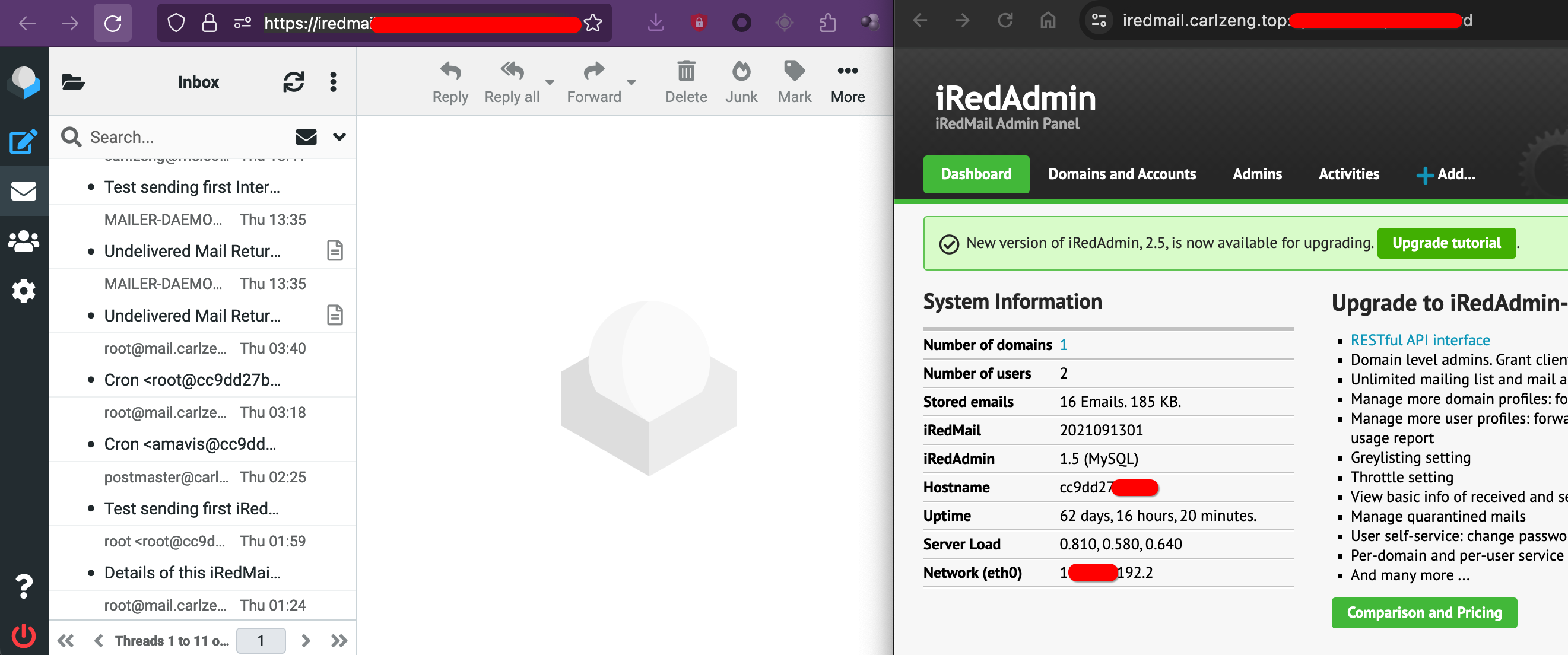
Establishing an email service applicable for individuals, companies, or organizations.
This chapter contains detailed technical documentation and troubleshooting steps encountered during the setup and maintenance of a self-hosted email server using Docker. If you have any further questions or encounter issues, feel free to refer back to this guide for assistance.
Note: This is the only simplified and operational mail system I found. Please leave a comment to let me know if you have a better self-hosted solution.
After encountering numerous challenges and investing around a month’s time, I eventually succeeded in testing email sending and receiving (some emails could not be delivered to their intended destinations due to anti-spam policies on the internet). Continuously updating and improving the system.
On March 18, 2024 added a new section: “Maintenance Scheduled Tasks.”
On March 22, 2024 added a new section: “SMTP Service Testing” and corrected the SPF DNS settings content; also noted an alternative solution: Stalwart Mail Server (All-in-One Mail Server).
Next step: A friend proposed a new requirement: How to send emails in batches?
How to Use
Sending and receiving emails daily
- Receive and send emails under your own domain by setting up an email service.
SMTP services to be configured on third-party platforms (or self-hosted services) for email notifications/information.
Related Content
Implementation Method
iRedMail Docker Setup
iRedMail docker-compose.yml
1 | version: '3.9' |
Upon Docker start-up, if everything is functioning correctly, the debug information will resemble:
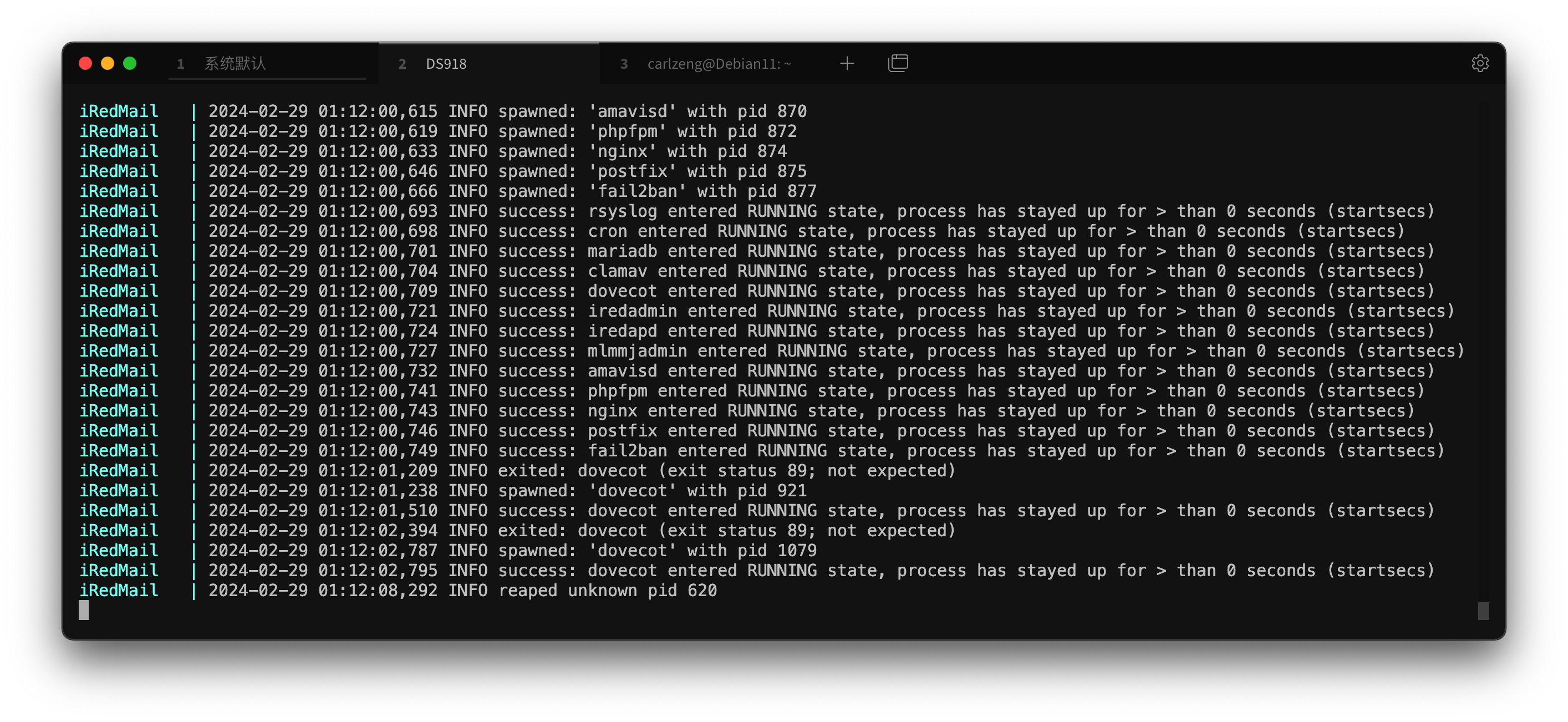
Once everything is running smoothly, proceed with setting up DNS records, followed by firewall port mappings.
Finally, use the system’s built-in webmail client to send and receive emails, or configure SMTP/POP3 in clients like Outlook for email communication.
Configure DNS Records
Your DNS MX record should point to this value
Example of DNS settings:
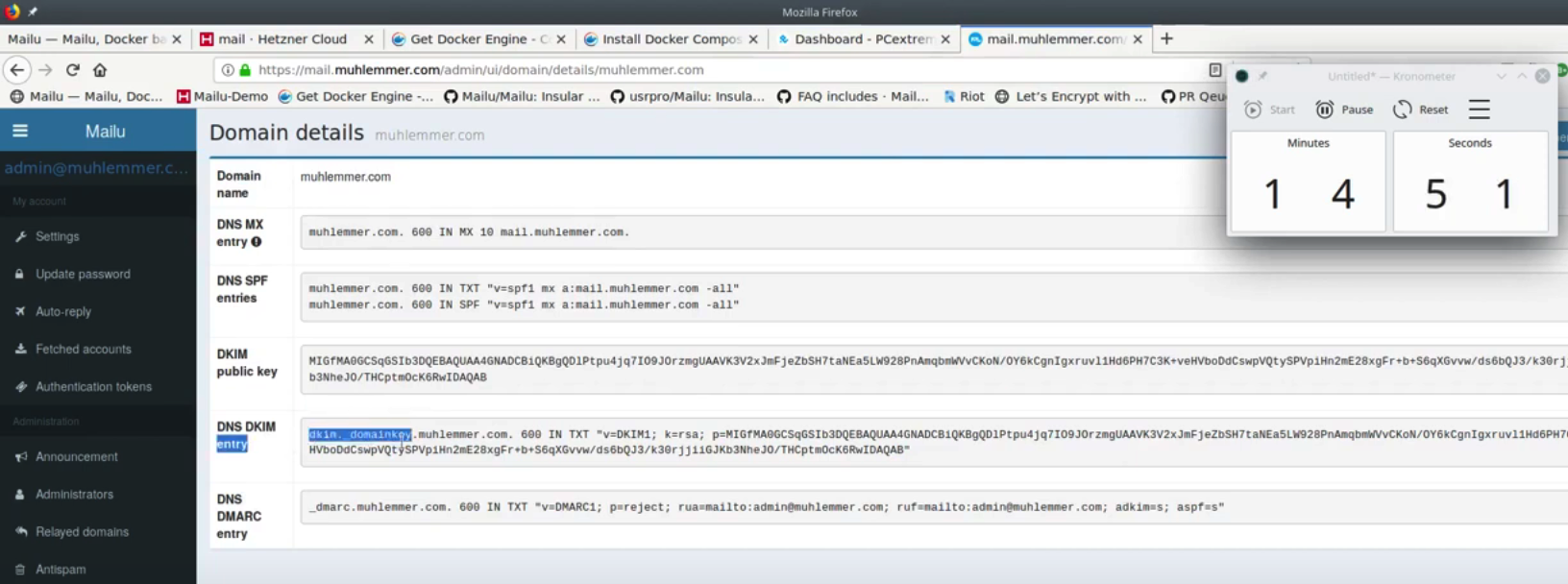
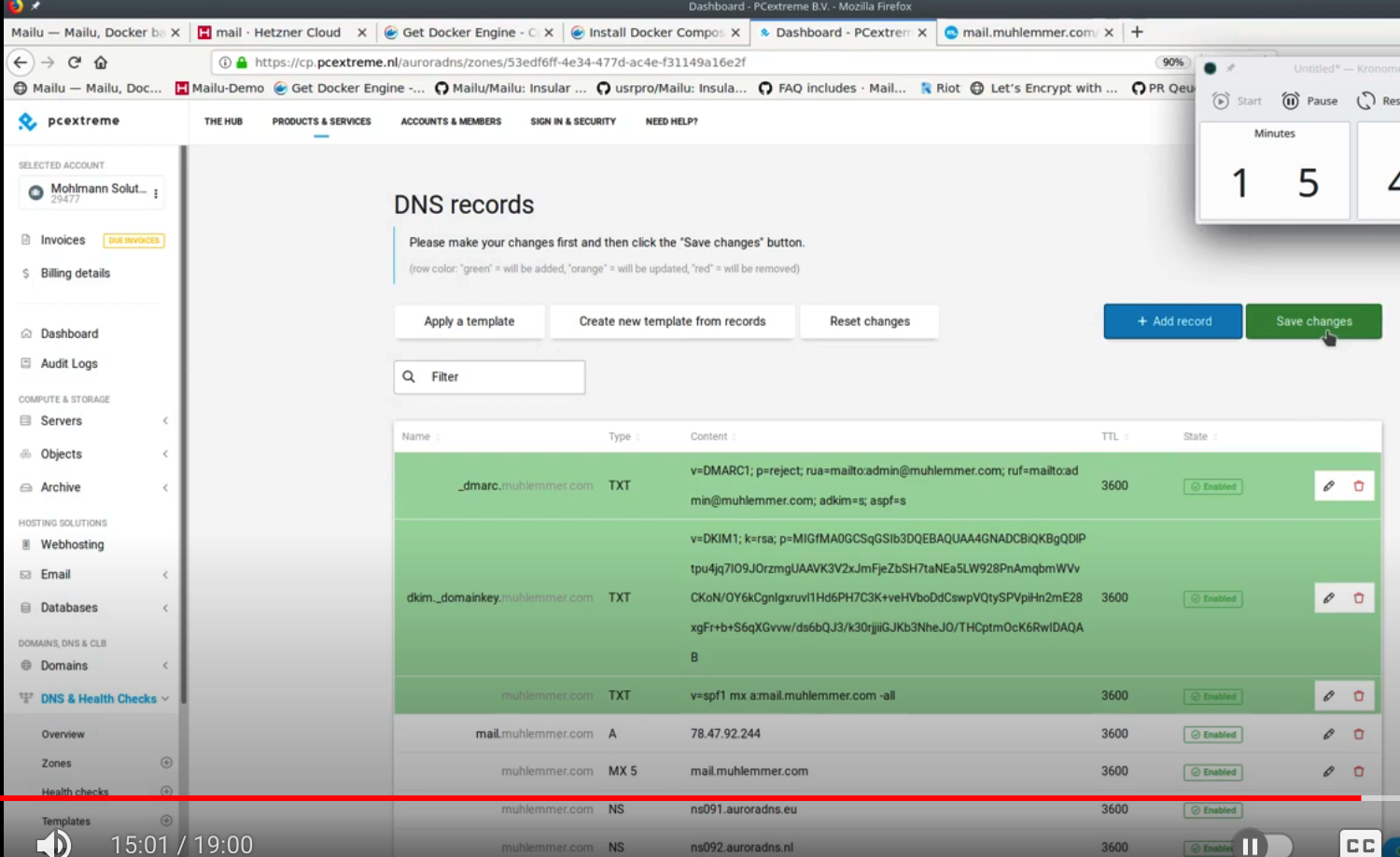
| DNS Type | DNS Record Name | Content/Value | Comments/Remarks |
|---|---|---|---|
| MX | carlzeng.com. | mail.carlzeng.com. | Identifies the mail server name, DNS MX entry |
| A | mail.carlzeng.com. | *.8.18.* | IP address of the mail server |
| TXT | carlzeng.com. | v=spf1 mx -all | SPF entry/record |
| TXT | dkim._domainkey.carlzeng.com. | v=DKIM1; k=rsm; p=* | DKIM entry/record, includes the DKIM public key |
| TXT | dmarc.carlzeng.com | v=DMARC1; p= reject; rua=* | DMARC entry/record |
Question: How to retrieve the three TXT records from the iRedMail mail system?
Answer: After installation: Setup DNS records for your iRedMail server (A, PTR, MX, SPF, DKIM, DMARC)
If you wish to validate the correctness of DNS records, you can use: https://mxtoolbox.com/
SPF Record Correction
According to the SMTP test report, there might be an error in this record.

v=spf1 mx a:mail.carlzeng.com -all
After modifying the SPF record, it has not been updated even after about half an hour. Continuous monitoring in progress…
After correcting the SPF-related DNS records and testing SMTP again, it showed successful:

DKIM Record Content Acquisition
When it comes to obtaining the content/value of dkim._domainkey.mydomain.com, for example:
1 | docker exec -it iRedMail bash |
DMARC Record Content
1 | v=DMARC1; p=reject; sp=none; adkim=s; aspf=s; rua=mailto:postmaster@carlzeng.com; ruf=mailto:postmaster@carlzeng.com |
Port Mapping
The purpose of this step is to ensure that the data related to email received on the router is correctly forwarded to the appropriate mail service system.
| External Port | Internal NAS/Mail Host Port | Description |
|---|---|---|
| ‘587:587’ | ||
| ‘465:465’ | ||
| ‘25:25’ | ||
| ‘993:993’ | ||
| ‘143:143’ | ||
| ‘995:995’ | ||
| ‘110:110’ | ||
| 4433 | 4433 | Access to port 443 may be added |
Mapping these ports one by one, fortunately, these ports have not been blocked by the Internet Service Provider (ISP) yet.
Setup for SMTP Email Sending
For instance, setting up email information in Bestbuy Purchase Cards Kamifaka to be used for email notifications.
Error: Unable to successfully reach the email destination
Solution: Please refer to the section ‘SMTP Service Testing’ for details on resolving this issue.
By adjusting the DNS record related to SPF (found it effective the next day), testing again; successfully sent a test email.
Errors and Solutions
Docker Startup Error - “Permission denied”
iRedMail | /usr/sbin/mysqld: Can’t create file ‘/var/lib/mysql/mysqld.err’ (errno: 13 “Permission denied”)
iRedMail | 2024-02-28 16:12:07 0 [ERROR] mysqld: Can’t create/write to file ‘/var/lib/mysql/aria_log_control’ (Errcode: 13 “Permission denied”)
Solution: Adjust permissions for the mentioned directories.
DNS Configuration Error - No DMARC Record Found
Solution: Ensure the correct DNS record name for DMARC DNS entry must include an underscore: _dmarc
iRedAdmin Operates Without Carrying Port Error
Error: The backend operation https://iredmail.carlzeng.com:3/iredadmin, when submitting a new confirmation operation, the page redirects without carrying the port status.
Solution: Investigate and resolve the issue for automatic port retrieval.
When submitting a new confirmation operation to the backend at https://iredmail.carlzeng.com:3/iredadmin, the page redirects without carrying the port status.
Error Resolution:
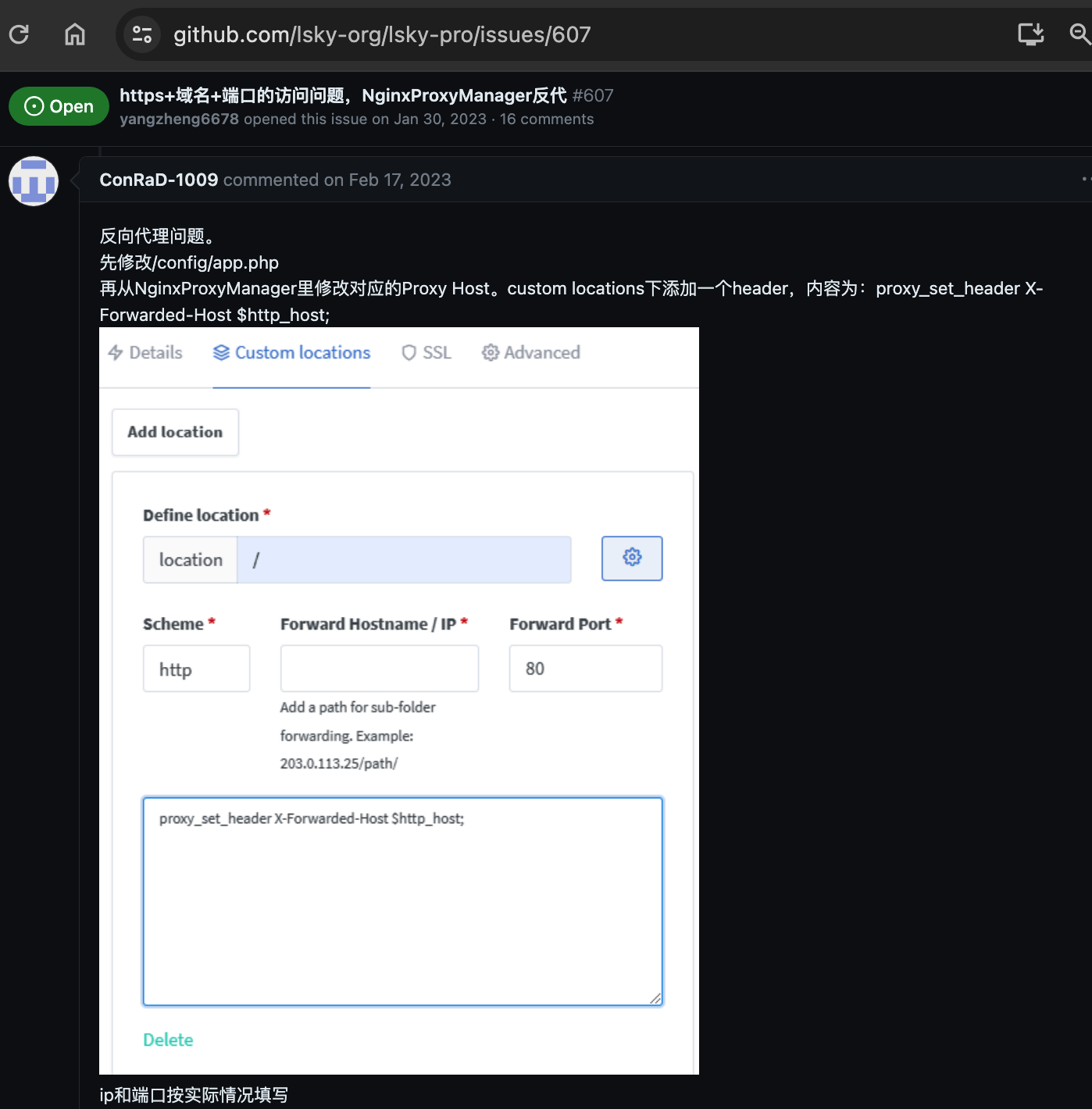
The issue of automatic port retrieval has not been resolved. I will continue to test after restarting Docker.
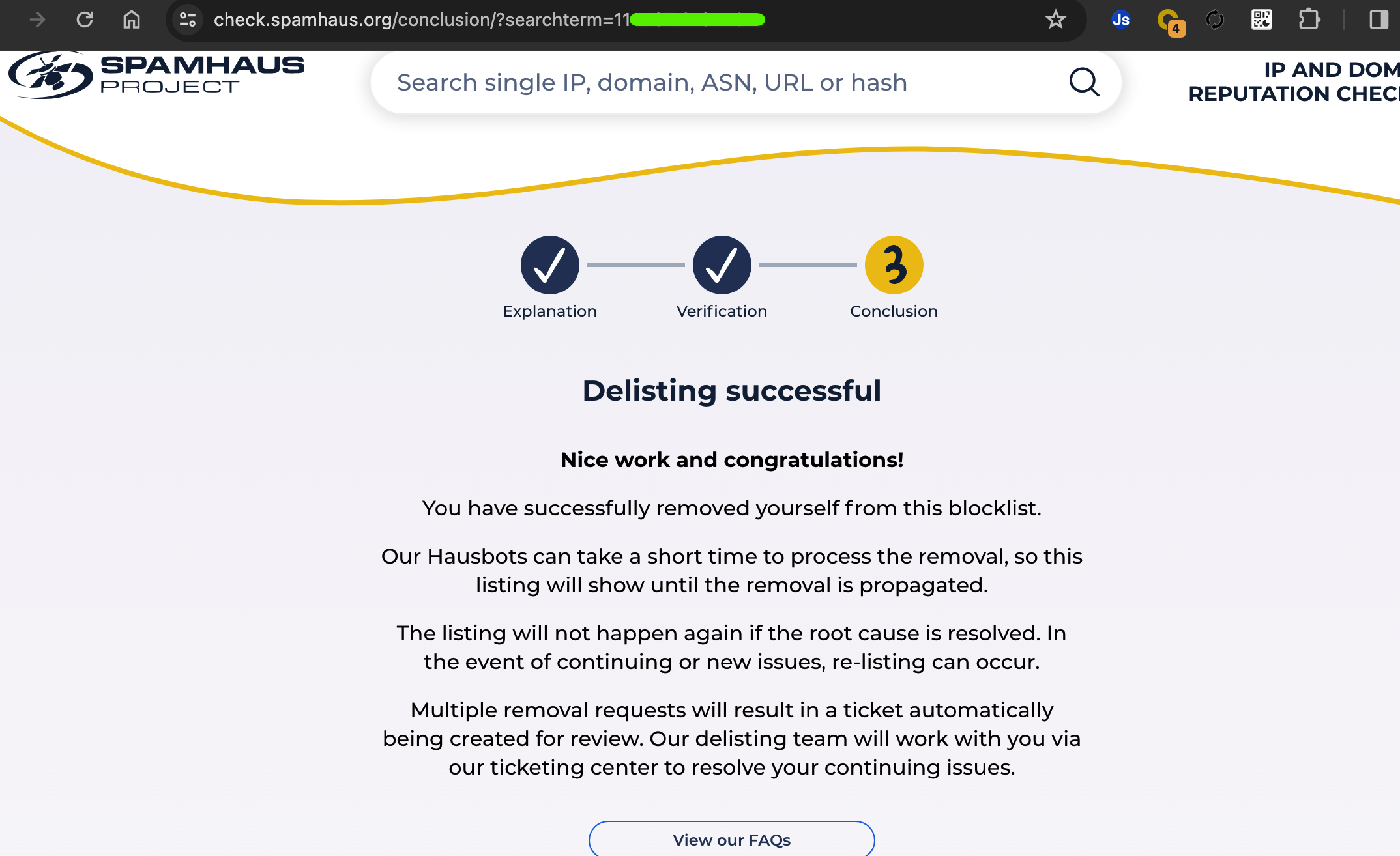
iCloud Communication Blockage - Rejected Due to Listing in Spamhaus PBL
When attempting to send email to host mx01.mail.icloud.com[17.56.9.31], it was rejected due to listing in Spamhaus PBL.
Solution:
Submit an unblocking request on the provided IP AND DOMAIN REPUTATION CHECKER website, and upon successful submission, results should reflect as shown in the image below:
Self-Blocking of Program Emails as SPAM
The SMTP configuration from the website platform led to program emails being tagged as SPAM. The system mistakenly identified these emails as possible spam.
Solution: The method to stop the excessive SPAM detection for self-sent emails is currently unknown.
Maintenance of Scheduled Tasks
Receiving 6 system automated backup emails daily led to managing the daily emails.
Solution: Edited the Linux scheduled tasks and removed unnecessary backup tasks for a cleaner email experience.
Email System Time Zone Correction
Modified the docker-compose file to include a volume entry to rectify the email system’s time zone:
“/etc/localtime:/etc/localtime:ro” - This entry corrects the email system’s time zone.
SMTP Service Testing
Utilized SMTP Test Tool and Email Check Spam Score and Improve Quality to assess the SMTP service health and improve email quality.
iredMail Certificate Configuration
Upon utilizing http://www.checktls.com/, it became evident that the Zendesk TLS certificate lacks specificity for the mail.pod-4 host.

From this observation, it appears to be an issue with the self-signed certificate. How can we replace and generate a new certificate?
Here are the steps for testing the configuration:
- Download the wildcard domain certificate generated in NPM, resulting in a certificate.zip file containing four files.
- Upload fullchain.pem and privkey.pem to the mapped directory (/KingchuxingSSD512G/docker/compose/iRedMail/ssl), renaming them to iRedMail.crt and iRedMail.key, respectively. Repeat this process for backup purposes.
- Test using https://www.ssllabs.com/ssltest/index.html and https://www.checktls.com/.
Reference for this section:
Request a free cert from Let’s Encrypt (for servers deployed with downloadable iRedMail installer)

Ensure that the certificate is for mail.carlzeng.com and use the dns challenge method with dns_cloudflare_api_token.
Processing… This might take a few minutes.
To obtain the certificate, it was discovered that using the Global API Key was incorrect; instead, the “API Token” section’s ‘Create Token’ was required. Edit the DNS zone accordingly.

Execute the following commands:
1 | cp mail.jbritian.com_bundle.crt cert.pem |
Rename:
1 | cert1.pem to cert.pem |
Ensure all components are mapped correctly to the container’s /opt/iredmail/ssl directory.
Then, create symbolic links:
1 | ln -s /etc/letsencrypt/live/mail.mydomain.com/fullchain.pem /etc/ssl/certs/iRedMail.crt |
Review these components to ensure they are correctly mapped within the container:
- Postfix: File /etc/postfix/main.cf (on Linux/OpenBSD)
- Dovecot: File
/etc/dovecot/dovecot.conf(on Linux/OpenBSD) - Nginx: File /etc/nginx/templates/ssl.tmpl (on Linux/OpenBSD)
- MySQL, MariaDB: On Debian and Ubuntu, it’s defined in /etc/mysql/my.cnf.
Modify TXT records:
1 | v=spf1 a mx include:_spf.google.com ~all |
These are the instructions for configuring the iRedMail certificate.
Reference
Open Source Universe - Self-hosted - Email
Running iRedMail E-Mail Server in Docker
Setup DNS records for your iRedMail server (A, PTR, MX, SPF, DKIM, DMARC)
From zero to full mail server in 20 minutes with Mailu Docker images!